By Braille Quill editorial team · Last verified [date]
Open the Speech category
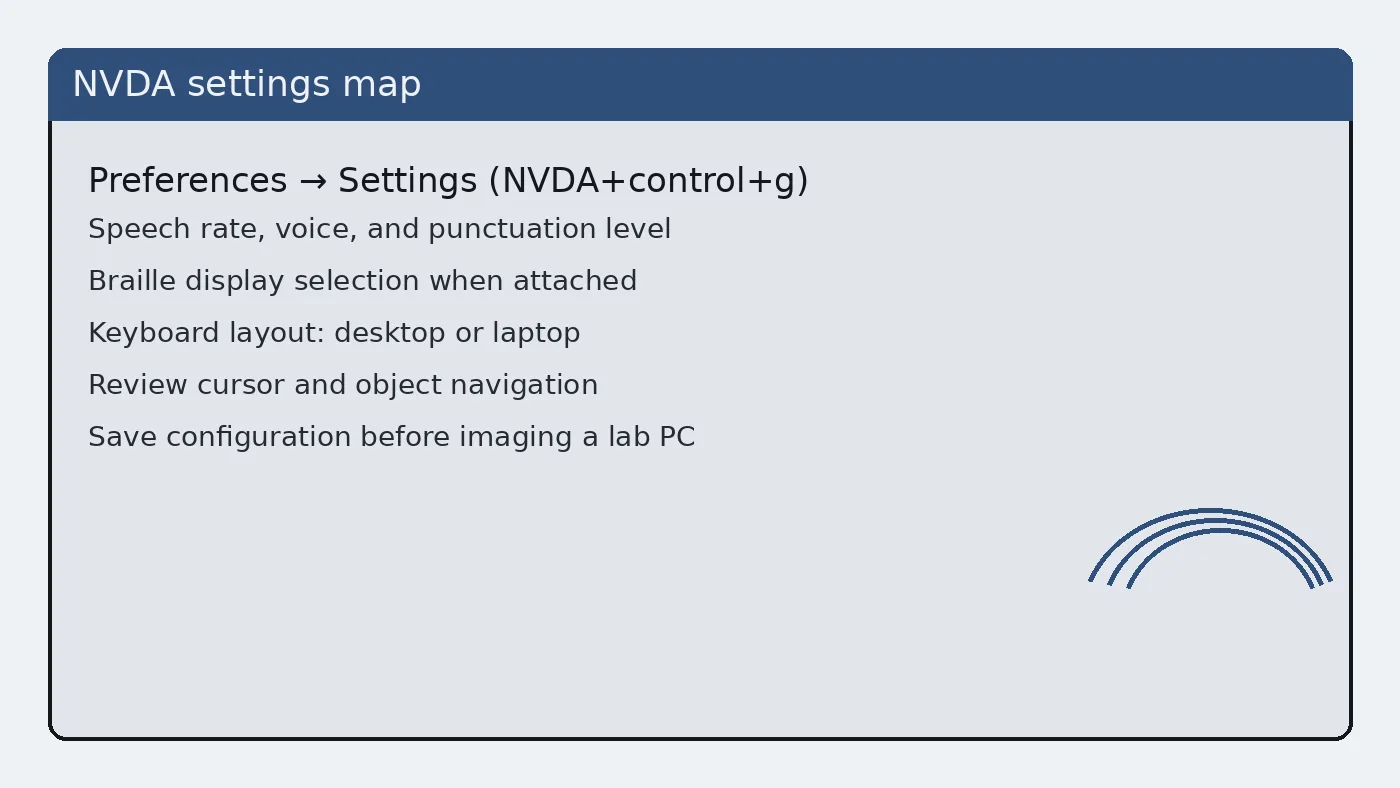
NVDA+n → Preferences → Settings → Speech. Change one control at a time so you can hear the effect.
Rate and pitch
Set rate for comprehension during long articles. Pitch changes can help distinguish voices but should stay secondary to rate for new users of the screen reader install.
Punctuation and symbol level
Increase punctuation verbosity when editing code or dense punctuation. Decrease it for prose reading. Match the task rather than leaving a single global extreme.
Synthesizer choice
Some voices ship with Windows; others arrive with the client packages. If a voice is missing after update, re-check the synthesizer selection before reinstalling.
Narrator conflict
Two screen readers talking is not a synthesizer bug. Exit Narrator, then retest NVDA speech alone.
Desk habits that keep installs boring
Write the update door on a sticky note or machine ticket the same day you install. Include whether you used winget id NVAccess.NVDA or a specific nvda_.exe filename from a release- tag. Future you will not remember which mirror felt convenient during a noisy afternoon.
Shared labs should pick one door and refuse improvisation. When SmartScreen blocks a first run, return to the same official URL instead of searching the web for a “working nvda crack setup” style result. Those results are how adware enters otherwise careful classrooms.
Portable copies help on USB workflows, but they still need a written home folder path. An unnamed stick in a drawer is not a backup plan. Label the stick and keep a second hashed copy in a software library your organisation controls.
Speech and listening environment
Headphones help in open offices. Speakers help when a trainer needs to hear what the student hears. Either way, confirm the Windows output device before you blame NVDA. Many silent installs are simply muted mixers or HDMI audio routed to a disconnected display.
If speech starts after a long delay, check startup configuration and antivirus first-run scanning. A freshly downloaded exe may be scanned on first launch. Wait, then prove a reading task rather than downloading a second copy from a different site.
Braille and hardware notes
Attach supported braille displays according to vendor USB guidance, then select the driver inside NVDA settings. If braille stays inactive, verify the display works on another machine before reinstalling nvda. Hardware faults and software faults need different tickets.
Speech-only desks are valid. Do not force braille configuration on images that will never see a display. Extra driver prompts confuse students who only needed voice output for the session.
Security reminders
Prefer github.com/nvaccess/nvda and nvaccess.org. Prefer winget show NVAccess.NVDA when you want catalog metadata. Skip countdown timers. Skip browser extensions offered as download helpers. See the download-safe and is-it-safe guides when something feels off.
Code signing acknowledgements in the upstream README are useful context, not a substitute for checking the URL you typed. Always match the filename pattern nvda_VERSION.exe for stable Windows builds.
Teaching and support
Trainers should demonstrate the screen reader modifier key slowly. Desktop versus laptop layouts change which physical key acts as NVDA. Say the key names aloud while you press them. Students who only hear “press NVDA plus N” without a physical reference will open the wrong menus.
Keep a one-page cheat sheet beside the keyboard during the first week. Link that sheet to the official user guide rather than copying large copyrighted chapters into a random shared drive.
When to revisit these pages
Revisit after every major Windows feature update, after every NVDA release-* bump you deploy, and after any incident involving a portal-downloaded installer. The commands stay short; the discipline around doors is what protects the fleet.
Frequently asked questions
How do I open speech settings?
Press NVDA+n, open Preferences → Settings, then open the Speech category. Change rate and voice, speak a test selection, and save configuration. Prefer official GitHub Releases or the verified winget id, then prove speech on a short document after install finishes.
Why is speech too fast?
Lower the rate slider and test on a full paragraph, not a single word. Fast demo rates are hard to follow during real documents. Prefer official GitHub Releases or the verified winget id, then prove speech on a short document after install finishes.
Why is there no speech?
Confirm NVDA is running, the correct output device is selected, and volume is not muted. Then check whether a synthesizer driver failed to load. Prefer official GitHub Releases or the verified winget id, then prove speech on a short document after install finishes.