nvda · Installed
Your nvda download is ready
If the Windows installer just landed, finish the screen reader setup, confirm speech, and walk the first-hour checklist before you chase add-ons or braille hardware.
Install NVDA 2026.2
Windows
Paste into PowerShell or Windows Terminal:
winget install -e --id NVAccess.NVDAPackage: microsoft/winget-pkgs NVAccess.NVDA (YAML-verified)..
Or download the file directly from the official GitHub release:
Download Windows installerWindows 8.1 or later. Prefer the official Windows exe from GitHub Releases, or winget install -e --id NVAccess.NVDA when App Installer is present.
Every file comes from nvaccess/nvda release-2026.2 on GitHub, the project's own release, unmodified.
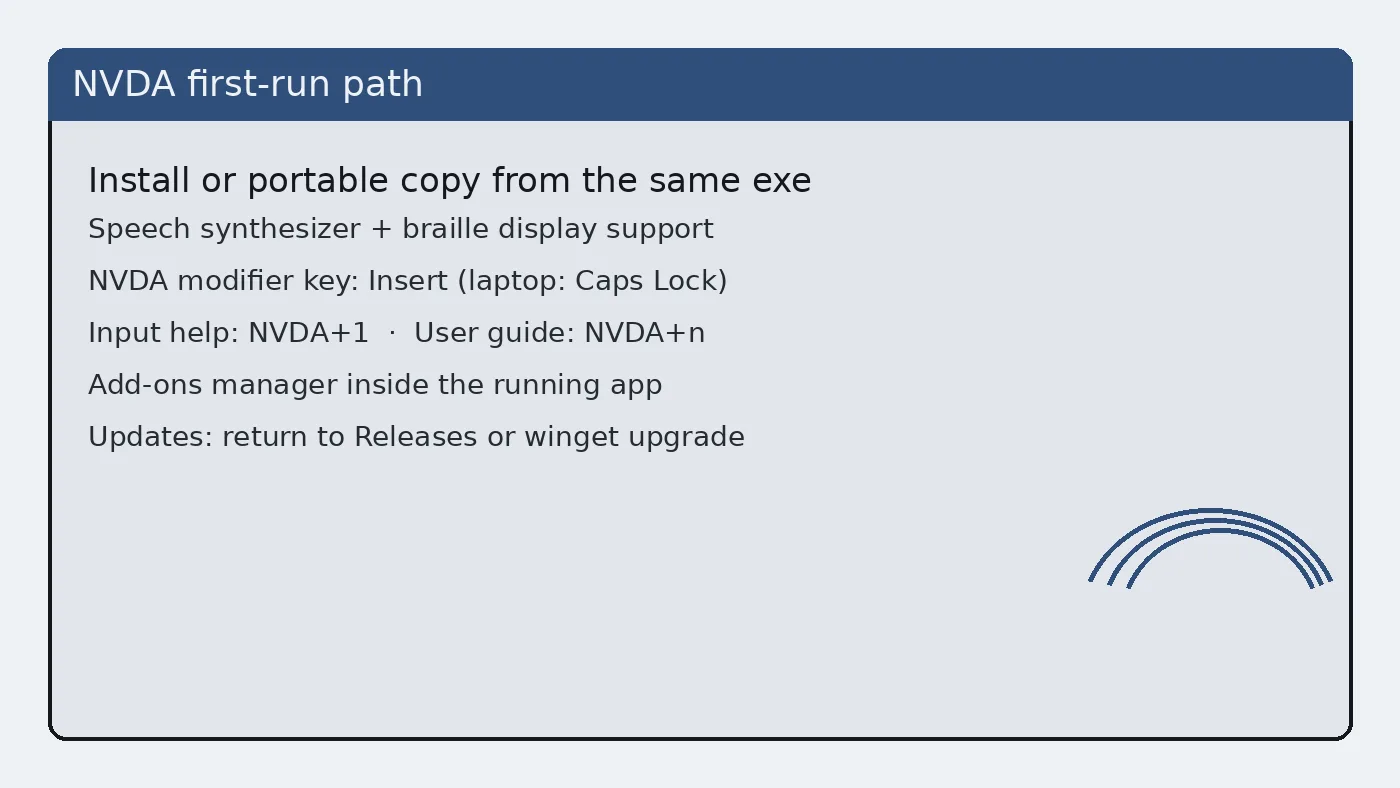
Eight first-hour steps
- Finish the installer or portable copy Complete UAC prompts and choose install vs portable deliberately for the screen reader machine.
- Launch NVDA once Start NVDA from Start menu or the portable folder and listen for speech.
- Stop Narrator if it overlaps Exit Narrator so only NVDA speaks during first checks.
- Open the screen reader menu Press NVDA+n and glance at Preferences, Tools, and Help.
- Set speech rate and voice Open Settings and pick a rate you can follow for a full paragraph.
- Pick keyboard layout Choose desktop or laptop layout so the modifier key matches your keyboard.
- Prove a reading task Arrow through Notepad or a browser page and confirm focus tracking.
- Write the update door Note winget NVAccess.NVDA or the Releases filename on the machine ticket.
Star the repo and watch releases
Optional but useful: star nvaccess/nvda and watch Releases so you notice stable tags. RSS users can subscribe to the GitHub atom feed for the repository releases.
Speech checklist
If speech is silent, confirm the output device, volume mixer, and that NVDA is actually running. If speech is doubled, stop Narrator. If speech is too fast, lower the rate before you judge the product harshly on the Windows desk.
Deeper settings: speech settings. Braille: braille. Add-ons: add-ons.
Safety reminder
If this file did not come from GitHub, nvaccess.org, or winget NVAccess.NVDA, pause and re-download. Safety guide: download safely, is it safe.
Next pages
Lab handoff
When you image multiple PCs, finish one golden machine through this checklist, then clone the known-good pattern. Do not invent a second download door mid-flight because SmartScreen felt annoying. Return to the same official nvda URL instead.
Write the client version tag beside the Windows build number. That pair explains most “it worked yesterday” tickets after cumulative updates.
Documentation habits
Keep a short plain-text note beside the installer door: OS version, nvda tag or winget id, and whether the copy is installed or portable. That note survives staff turnover better than chat lore. When speech misbehaves after a Windows cumulative update, the note tells you whether to repair nvda or roll back the OS change first.
Students and volunteers can follow the same note format. Consistency matters more than perfect prose. A boring checklist beats a clever paragraph that nobody re-reads during an outage of the screen reader path.
If you publish internal wiki pages, link back to GitHub Releases and nvaccess.org rather than hosting a private mirror of the exe. Mirrors drift. Official doors get security fixes first.
One more pass before you leave the desk
Repeat a short reading task after reboot. Some speech issues only appear after logon scripts run. If nvda starts too late, adjust startup options in NVDA preferences and retest on a clean logon for this Windows account.
Keep the official Releases URL in your browser bookmarks bar under a boring name like NVDA stable. Clever nickname folders get lost during profile resets.
Operational notes for busy weeks
Imaging weeks fail when two technicians use different download doors. Agree on GitHub Releases or winget before the first machine is touched. Put the choice in the shared checklist rather than a chat thread that scrolls away.
Speech complaints often trace back to muted mixers, HDMI audio on a dark display, or Narrator still running. Check those three items before you reinstall the screen reader. Reinstalls without diagnosis waste the afternoon.
Keep headphones labelled for training rooms. Shared earpads get lost. A simple bin with spare cables prevents cancelled accessibility demos when hardware goes missing five minutes before class.
After cumulative Windows updates, re-prove a short reading task on the golden image. Feature updates can change audio defaults. A five-minute check is cheaper than a Monday morning pile of tickets.
Document braille display inventory with serial numbers when your organisation owns the hardware. Software settings alone cannot fix a failing cell. Separate hardware tickets from software tickets so the right person responds first.