nvda · This computer
Set up nvda on this computer
On a Windows PC you control, install nvda with winget id NVAccess.NVDA or the official nvda_*.exe, then confirm speech before you change voices or add braille hardware.
Requirements
| Item | Expectation |
|---|---|
| OS | Windows 8.1 or later for typical NVDA releases; winget manifest sampled for modern Windows 10 and later |
| Audio | Working speakers or headphones for speech |
| Permissions | Ability to install software or run a portable copy |
| Network | Needed for the first download and later updates |
Windows install
Prefer the verified package manager command when App Installer is available:
winget install -e --id NVAccess.NVDAOtherwise download nvda_*.exe from GitHub Releases or nvaccess.org/download and run it. Choose installed or portable copy deliberately. Related: Windows install, winget howto.
First run
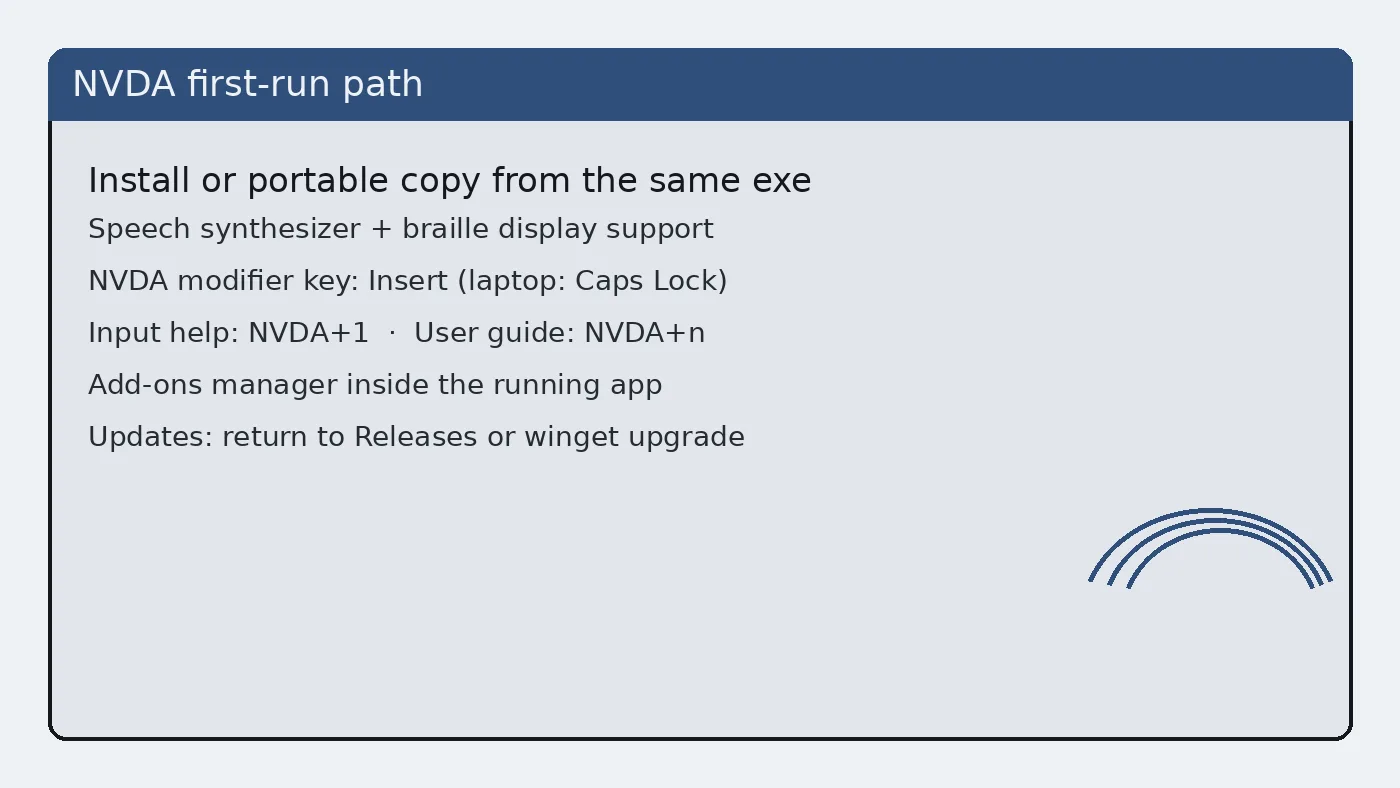
Launch NVDA from the Start menu or the portable folder. Confirm speech starts. Open the screen reader menu with the screen reader modifier plus N. Visit Preferences → Settings to set speech rate and keyboard layout for this computer.
If Windows Narrator is also speaking, stop Narrator so you can evaluate nvda on its own. First-run guide: first run.
Hardening and shared PCs
On shared lab machines, prefer a full install with a documented update door. On travel USBs, prefer a portable copy and keep the folder name boring and obvious. Do not store unrelated personal documents inside the portable folder if the USB is shared.
Save configuration after you set speech defaults so a reboot does not surprise the next user of the screen reader profile.
Update and uninstall
Update with winget upgrade NVAccess.NVDA or a newer official exe. Uninstall from Apps and features or winget uninstall NVAccess.NVDA when winget performed the install. Details: update uninstall.
When this computer is not Windows
macOS and Linux are outside NVDA’s primary design. Brew has no nvda cask on this review date. Use VoiceOver on Apple systems or another Linux screen reader instead of inventing a package id. Notes: macOS, Linux.
Braille displays on this desk
Attach the display before you open braille settings when possible. Select the matching driver in NVDA settings, then prove both speech and braille on a short document. If braille stays quiet, confirm USB permissions and the driver choice before you reinstall nvda.
Not every desk needs braille hardware. Speech-only installs are valid. Record whether braille was configured so the next technician does not chase missing hardware that was never part of the image.
Profiles and multiple users
Windows user profiles can keep separate NVDA configurations depending on install choices. On shared computers, decide whether each student account should carry its own speech rate. Document that decision next to the screen reader update door.
Portable copies on USB sticks should be labelled with the owner name when policies allow. Unlabelled sticks are how classrooms mix configurations and open wrong tickets after a speech complaint.
Documentation habits
Keep a short plain-text note beside the installer door: OS version, nvda tag or winget id, and whether the copy is installed or portable. That note survives staff turnover better than chat lore. When speech misbehaves after a Windows cumulative update, the note tells you whether to repair nvda or roll back the OS change first.
Students and volunteers can follow the same note format. Consistency matters more than perfect prose. A boring checklist beats a clever paragraph that nobody re-reads during an outage of the screen reader path.
If you publish internal wiki pages, link back to GitHub Releases and nvaccess.org rather than hosting a private mirror of the exe. Mirrors drift. Official doors get security fixes first.
Operational notes for busy weeks
Imaging weeks fail when two technicians use different download doors. Agree on GitHub Releases or winget before the first machine is touched. Put the choice in the shared checklist rather than a chat thread that scrolls away.
Speech complaints often trace back to muted mixers, HDMI audio on a dark display, or Narrator still running. Check those three items before you reinstall the screen reader. Reinstalls without diagnosis waste the afternoon.
Keep headphones labelled for training rooms. Shared earpads get lost. A simple bin with spare cables prevents cancelled accessibility demos when hardware goes missing five minutes before class.
After cumulative Windows updates, re-prove a short reading task on the golden image. Feature updates can change audio defaults. A five-minute check is cheaper than a Monday morning pile of tickets.
Document braille display inventory with serial numbers when your organisation owns the hardware. Software settings alone cannot fix a failing cell. Separate hardware tickets from software tickets so the right person responds first.